
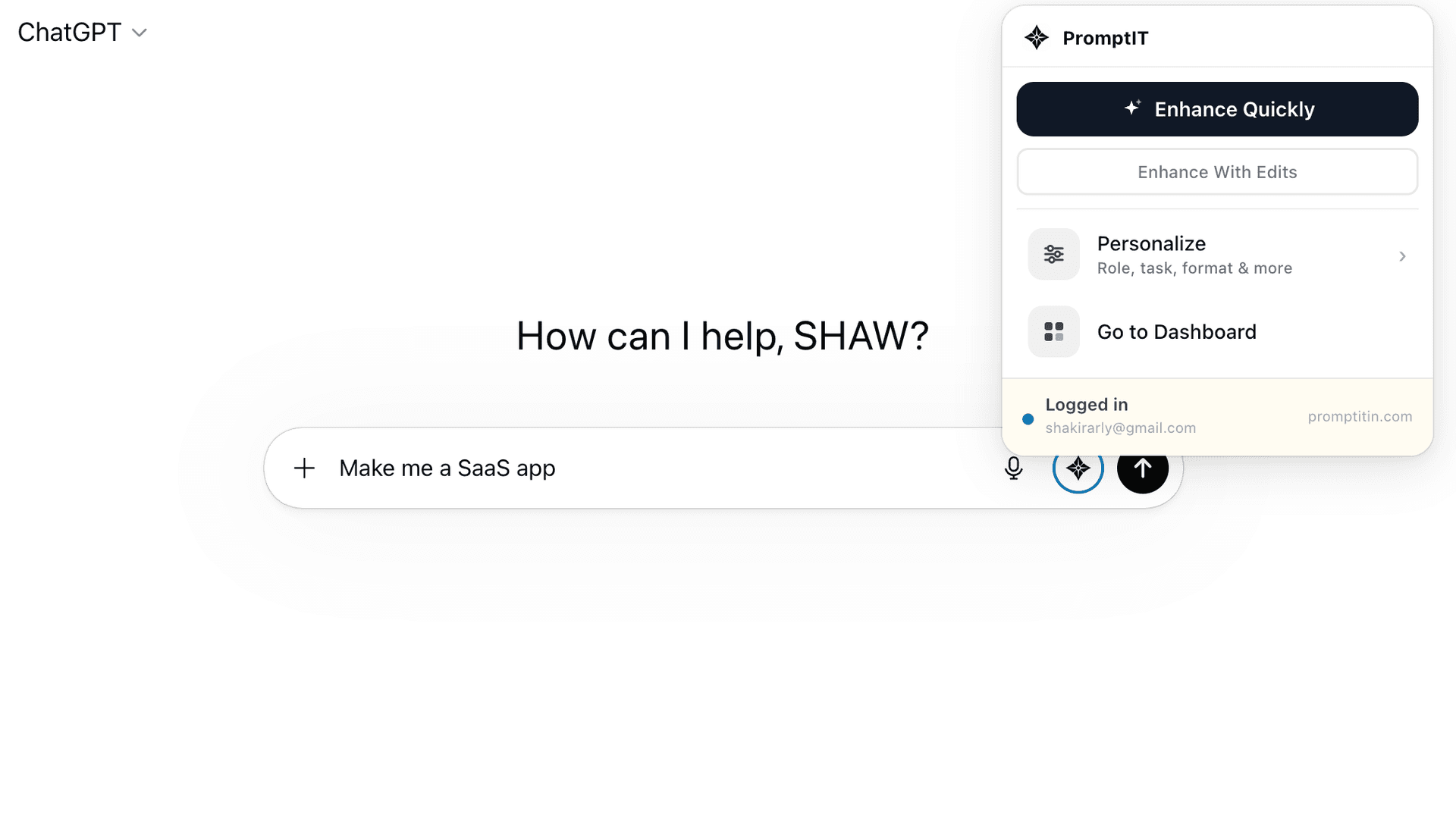
The fastest way to get better results from ChatGPT is to fix the prompt before you send it. PromptItIn does this automatically — it lives inside ChatGPT's input bar and adds the five elements most prompts are missing: role, context, task, constraints, and format.
Most ChatGPT users type only the task and skip the other four elements. According to OpenAI's own prompting best practices, specifying a role, context, and output format consistently produces more accurate, useful responses. The PromptItIn Chrome extension solves that at the source.
What Is the PromptItIn Chrome Extension?
The PromptItIn Chrome extension is a lightweight tool that embeds directly into the ChatGPT interface. Instead of switching tabs or trying to remember the right formula for a good prompt, the extension adds an Enhance button right next to the ChatGPT input box.
When you click it, your rough draft is sent to PromptItIn's AI engine, restructured using the ROLE / CONTEXT / TASK / CONSTRAINTS / FORMAT framework, personalised with your saved profile, and returned to you — all in a few seconds, without you leaving ChatGPT.
How to Install the Extension (30 Seconds)
Getting started takes less time than reading this paragraph.
- Open the Chrome Web Store and search for "PromptItIn" — or click the install link on the PromptItIn homepage.
- Click "Add to Chrome" and confirm the permission prompt. The extension requests access to seven sites only — chatgpt.com, claude.ai, lovable.dev, bolt.new, replit.com, v0.dev and v0.app — plus promptitin.com to read your login session.
- Pin the PromptItIn icon to your Chrome toolbar for quick access.
- Open ChatGPT. You will see the PromptItIn button appear in the input toolbar automatically.
- Sign in with your PromptItIn account (or create a free one) to unlock Personalize and your full daily limit.
No API keys. No configuration files. No setup wizard. The extension is ready to use the moment you open ChatGPT.
How It Works: The Five Elements
When you click Enhance Quickly, the extension reads what you have typed into the ChatGPT input box and constructs a five-part structured prompt.
- ROLE: Who the AI should be — a senior engineer, a copywriter, a business analyst. Giving the AI a specific persona shifts the quality and angle of its answers.
- CONTEXT: The background the AI needs. Your project, your situation, what you are trying to achieve. Stops the AI from making generic assumptions.
- TASK: The precise action you need the AI to take. Not 'help me write' but a specific deliverable with angle and depth.
- CONSTRAINTS: What to avoid, tone to use, word limits. Constraints are what separate a focused response from an essay that misses the point.
- FORMAT: How the output should be structured. Bullet list, table, numbered steps, one paragraph — specifying this upfront makes output immediately usable.
The enhanced prompt is then streamed back into your ChatGPT input box, replacing the original text. From there, you simply hit Enter — or review and tweak it first.
Enhance Quickly
This is the primary action — the big button in the popup. Click it once and your prompt is enhanced immediately. There are no extra steps, no settings to configure, no intermediate screen.
Enhance Quickly uses your saved profile automatically. If you have told PromptItIn that you are a software engineer who prefers a direct tone, every quick-enhanced prompt will reflect that context — without you having to mention it each time.
Enhance With Edits
The second option opens an editing panel before the enhancement runs. This is where you guide the AI more specifically — you can adjust the intended audience, the output length, the tone, and add any context specific to this particular prompt.
- Prompts for sensitive or nuanced topics where defaults will not do
- Tasks where output length or format really matters
- Work that requires context you have not added to your profile yet
- High-stakes outputs — pitch decks, client proposals, legal summaries
Personalize — Set Once, Applied to Everything
Below the two enhance buttons is the Personalize option. This opens your profile settings — the layer of context that makes every enhanced prompt specific to you rather than to some imaginary average user.
- Role / Profession: who you are. Software engineer, startup founder, marketer, student. PromptItIn calibrates the language, depth, and assumptions in every prompt around this.
- Main Goal: what you primarily use AI for. Coding, writing content, doing research. Shapes the default framing of your prompts.
- Tone: how you want the AI to respond. Professional, casual, academic, creative, direct. Applied automatically to everything once set.
- AI Tools: which tools you use. ChatGPT, Claude, Gemini, Cursor, Perplexity. PromptItIn optimises enhanced prompts for the model you are actually using.
- Skill Level: your self-assessed level with AI tools. Adjusts how detailed or technical the enhanced prompts get.
- Extra Context: a free-text field for anything else relevant — your company, your project, your niche, your audience.
Why Your Prompts Keep Failing
Most people approach ChatGPT the same way they would google something — a sentence or two. The AI tries its best but it is working with incomplete information, so it guesses. Those guesses produce generic, hedged, often too-long responses that do not quite match what you actually wanted.
- No role specified: the AI defaults to a generic assistant. Giving it a specific persona shifts the quality and depth of the response dramatically.
- No context provided: without background, the AI assumes a generic scenario. Context like your industry, audience, or current situation makes responses immediately more relevant.
- Vague task description: 'write me something' is a starting point, not a task. A task specifies the deliverable, the angle, the purpose, and the length.
- No constraints: without constraints, AI fills space. Word limits, things to avoid, tone requirements — these make a response tight and on-point.
- No format instruction: asking for a list and getting five paragraphs is a format mismatch. Specify bullet list, table, numbered steps, or paragraph — the AI will follow it.
Before and After: What the Extension Actually Does
A user types: "help me write an email to a client about a delay". After clicking Enhance Quickly, with a profile set to Account Manager, Professional tone, B2B SaaS context:
The enhanced prompt reads: ROLE: You are a professional B2B account manager experienced in client communication and managing expectations in SaaS environments. CONTEXT: A client deliverable has been delayed. The relationship is ongoing and professional. The delay needs to be communicated clearly without damaging trust. TASK: Write a professional email to a client informing them of a project delay. Acknowledge the inconvenience, provide a brief explanation, give a revised timeline, and close with a commitment to quality and transparency. CONSTRAINTS: Keep the tone professional and empathetic. Do not over-apologise or be vague. No more than 180 words. Do not include specific dates. FORMAT: Standard business email format with subject line, greeting, body (3 short paragraphs), and professional sign-off.
The original prompt was 10 words. The enhanced version gives ChatGPT everything it needs to produce a genuinely useful, professional email on the first attempt — no back-and-forth required.
Who Is This For?
- Professionals with no time to learn prompt engineering: you use ChatGPT to get work done, not to study how it works.
- Writers and content creators: every brief becomes a structured creative prompt. Tone, format, audience, length — specified automatically.
- Developers using ChatGPT for code: debugging requests, architecture questions, code review prompts — built with the right technical framing.
- Marketers and founders: ad copy, email sequences, landing page drafts — written as precise briefs, not vague requests.
- Students and researchers: complex research questions, essay outlines, literature summaries — structured for academically rigorous responses.
- Daily ChatGPT users who repeat the same context: if you type the same background information over and over, Personalize eliminates that permanently.